

 For those who have a hobby of blogging using Wordpress with Blackberry phones, would be facilitated.
Because now there are special applications made Wordpress for BlackBerry users.
Facilities on offer are also not inferior to the PC version.
With this Blackberry users can write blog posts, upload photos and videos, edit and organize pages of comments on each posting articles into wordpress.
For Blackberry users, the application is already supported platform Wordpress version 2.7 site up and special selft-hosted.
If the user wants to obtain more complete information about Wordpress application usage, and trouble shooting can visit the forum here.
Details:
Developers: Automatic, Inc.
Version: 1.1
Platform: Blackberry.
File Size: 677 KB.
Category: Blogs.
Download: Here.
BeBuzz Applications, Arrangement LED Colors And Vibration For Blackberry.
 In some of the Blackberry series is not available settings LED colors and Vibra by default.
We need to add third-party applications, one of which is BeBuzz.
Application made by Bellshare GmbH have two versions, namely free and paid.
For a free facility LED color and vibra settings still limited.
But in general, is enough to represent multiple user needs, such as for notification of incoming messages, incoming calls, miss calls, and when the Blackberry is turned on.
If using a paid version is superior abilities again, not just a reminder messages but all messages including instant messaging.
For PIN messages can also be more personalized, and surely with this application make is different from the other Blackberry.
Publisher: Bellshare GmbH.
Category: Entertainment, Gadget.
Platform: Blackberry.
Version: 2.1.40
File Size: 85 KB.
Download: Here.
 RIM will soon launch three smart phones, the launch process is going along with the launch of its latest OS namely OS 6.0.
Three mobile phone is 3G Pearl 9105, 3G Pearl 9100, and Bold 9650.
Judging from the specifications do not differ much on this phone except in terms of design.
Type Pearl has a candy bar design with a half QWERTY keypad and keypad T9, while for the Bold was still the same type as the previous series.
The third connectivity this phone is quite complete with the Bluetooth and Wi-Fi.
Similarly, with some upscale features like 3.2 megapixel camera that is equipped with autofocus and LED flash.
The launch of series 3G Pearl 9105 and 3G Pearl 9100 aimed to attract the young segment due to have some bright color choices.
This is the latest breakthrough from a previous Blackberry rarely give a choice of colors.
While for the Bold series intended for the purposes of the Office are usually used by employees of the office or young executive.
Specifications:
Blackberry 3G Pearl 9105.
Network: 2G-Quadband GSM, 3G, HSDPA 850/1900/2100, HSDPA 900/1700/2100.
Dimensions: 10.8 x 5 cm x 1.33.
Weight: 93.6 grams.
Screen: 256K color TFT, 360 x 400 pixels.
Main camera: 3.15 megapixel, 2048 x 1536 pixels, autofocus, LED flash, Video.
Internal Memory: 256 MB
External Memory: Up to 32 GB microSD, 2GB Included.
Data Transfer: GPRS Class 10, EDGE Class 10, 3G, HSDPA 3.6 Mbps, HSUPA.
Connectivity: Wi-Fi 802.11b/g/n, Bluetooth v2.1 with A2DP, microUSB v2.0
OS: Blackberry OS.
CPU: 624 MHz processor.
Features: Touch-sensitive optical trackpad, GPS with A-GPS support, Java MIDP 2.0, Blackberry Maps, Document editor, MP3/WMA/eAAC + player, MP4/H.263/WMV player, Organizer, Voice memo / dial, Games, Half-QWERTY keyboard.
Battery: Li-ion 1150 mAh .
Blackberry 3G Pearl 9100.
Network: 2G-Quadband GSM, 3G, HSDPA 850/1900/2100, HSDPA 900/1700/2100.
Dimensions: 10.8 x 5 cm x 1.33.
Weight: 93.6 grams.
Screen: 256K color TFT, 360 x 400 pixels.
Main camera: 3.15 megapixel, 2048 x 1536 pixels, autofocus, LED flash, Video.
Internal Memory: 256 MB
External Memory: Up to 32 GB microSD, 2GB Included.
Data Transfer: GPRS Class 10, EDGE Class 10, 3G, HSDPA 3.6 Mbps, HSUPA.
Connectivity: Wi-Fi 802.11b/g/n, Bluetooth v2.1 with A2DP, microUSB v2.0
OS: Blackberry OS.
CPU: 624 MHz processor.
Features: Touch-sensitive optical trackpad, GPS with A-GPS support, Java MIDP 2.0, Blackberry Maps, Document editor, MP3/WMA/eAAC + player, MP4/H.263/WMV player, Organizer, Voice memo / dial, Games, Half-QWERTY keyboard.
Battery: Li-ion 1150 mAh.
Blackberry Bold 9650.
Network: 2G-Quadband GSM, 3G HSDPA 2100, CDMA / EDVO Rev A 800/1900.
Dimensions: 11.2 x 2.6 x 1.4 cm.
Weight: 136 grams.
Screen: 65K color TFT, 480 x 360 pixels, 2:44 inches.
Internal Memory: 512 MB.
External Memory: Up to 32 GB microSD, 2GB Included.
Data Transfer: GPRS Class 10, EDGE Class 10, 3G, HSDPA 3.6 Mbps.
Connectivity: microUSB v2.0
Camera: 3.15 megapixel, 2048 x 1536 pixels, autofocus, LED flash, Video.
OS: Blackberry OS.
Browser: HTML.
Features: Touch-sensitive optical trackpad, GPS with A-GPS support, Java MIDP 2.0, Blackberry Maps, Document editor, MP3/WMA/eAAC + player, MP4/H.263/WMV player, Organizer, Voice memo / dial, Games, Full QWERTY keyboard.
Battery: Li-ion 1400 mAh.
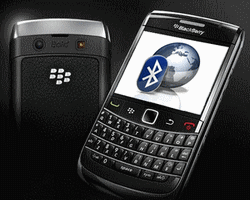 Many some Blackberry users who do not know how to receive files via Bluetooth on Blackberry.
This question is often the case for most new users who previously often have a Blackberry device without an operating system.
For there to receive multimedia files such as audio, video, and photos on your Blackberry does need special ways.
System used Blackberry virtually identical to the Windows Mobile Smartphone base, in essence to better protect the phone from the inclusion of things that are not desired.
Steps should be done in order to receive files via Bluetooth on Blackberry is as follows:
- Activate Bluetooth -> Set Up Bluetooth and select "Search" to search for Bluetooth mobile phones that will send the file.
- Once detected, select Bluetooth phone is a profile name and then enter a passkey to connected with phones that will send the file.
- How to receive files please go to the menu of existing media in the multimedia folder.
- Press the BlackBerry menu (Figure icon Blackberry) -> Receive Using Bluetooth.
- Please wait for a connection from the sender's phone, then please press the Yes button.
 Unlike the Blackberry Bold or Blackberry Curve, Blackberry Storm 9500 or 9530 we can not use a virtual keyboard as a shortcut.
On the Blackberry Storm have special treatment to browse your favorite menus are easier and faster, its core so that we can not go back and forth to open the main menu.
Before stepping away it's good we get to know some key and important characters are related to the use of shortcuts.
- Virtual Keyboard.
- Mute Key.
- Right Convenience key (Default camera).
- Back Key.
- Menu Key.
- Call End / Power Key.
- Key Lock.
- Left Convenience Key (Default voice dialing).
- Volume Key.
Basic Function:
- Lock Screen.
There on the corner of the icon that is not too clear, press once to lock and press again if we want to open. - Displaying the Menu.
Besides using the menu key, we can also directly suppress the main screen. - Back to the previous menu.
Press the back key or end the call if you want to direct to the main menu. - Quick access to your favorite menu.
Here we can use shortcut keys left or right, do the settings by selecting menu options, Screen / Keyboard.
Please select the shortcut button and adjust to the needs.
- Highlight / Blocking.
Usually used to select more than one item, whether for text, messages, SMS, or multimedia files.
Select items on top, and use another finger to slide the cursor to highlight the desired group is obtained.
This step can be used to remove more than one file, or other functions such as copy / paste. - Highlight / Search.
As well as blocking the item, highlight can also be used to find groups of items based on characters in the highlights.
For example an SMS or email based on sender ID, tap on the desired group said a moment while the indicator moves automatically highlight a search. - Selecting a menu item.
For this process, press gently on the icon screen to be selected.
Touchscreen not only touched as many other phone uses, but must be suppressed. - Scrolling.
Slide a finger that has touched the screen towards the top if you want to find the menu on the bottom row or vice versa if you want to get the items on top. - Between moving items.
Usually used for the purposes of selecting files when aired.
Slide the finger that has touched the screen to the left, to open the item next.
When shifted to the right, we'll be back on the previous menu. - Zooming and Slide.
Press twice to enlarge the preview image looks.
If you want to see the enlarged picture on the other hand, live appearance by using a finger slide.
To restore the display position please press the back button.
- To temporarily display the audio / video, or resume press on Mute button.
- If you want to play the next or previous song, press and hold down the volume a few moments.
- To zoom in or out of the object image, press the volume key up or down.
- To lock the focus of the picture before the capture, press the half on the Right button convenience.
Many explanations from me, hopefully useful and can help users not familiar with the Blackberry Storm which use the shortcut on the Blackberry Storm.


